
Index
Find ways to troubleshoot and fix your audio problems during live lectures, webinars, and extra help sessions.
Our virtual classroom, BigBlueButton, is set up to allow you listening-only audio permissions to keep things simple. When you enter the classroom, you will have to give permission to play audio. The request will look something like below. If you do not give permission, you will not hear anything.
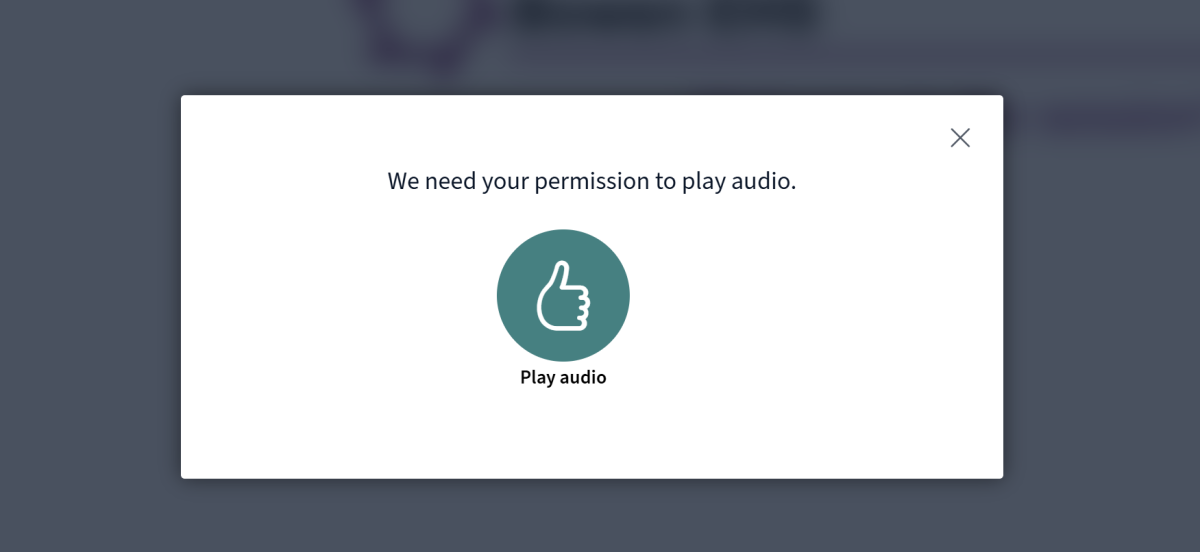
If you think you did not give permission, please reload the page.
How do I know there's audio or sound happening?
You can see a "speech bubble" notification that appears above the presentation space on the left side when someone is talking. (Example below). You can always see this even if you cannot hear it.

How do I check or change my audio settings?
The virtual classroom will use the audio device and settings set on your device (computer, tablet, iPad, phone, etc.). To check if your device is actually delivering sound in the web browser (Chrome, Safari, Edge, etc.) that you are using, please navigate to a news, media, video, or audio site and play a video or audio to see if you can hear the audio. Here's a test video that you can use.
If you can hear the audio in your browser, your audio settings are correct.
What to check in your audio settings
If you cannot hear the audio, please check the following options. They may be located in different places depending on your device.
- Change volume levels
- Change audio device
- Check for a mute button - it could be a physical button/control or in the area where you can visually see and change the volume levels on screen.
- Check audio permissions in your operating system: sometimes your browser may not have permission from the device to produce audio.
- Check Audio permissions in the browser tab. Sometimes you can mute the audio right in the tab.
Workaround tip: For sound, use your smartphone to sign in to the Learning Center and join the BigBlueButton session from it. You can watch on your larger screen and listen on your phone.
Further troubleshooting
If the other suggestions did not resolve your issues, one of these may be causing the issues:
- security applications running on your machine
- If this is a device that is managed by your organization: settings that prevent unknown traffic
- Your internet access may have restrictions preventing the audio from coming through
- You might have an outdated web browser or some browser extension interfering. Please update or check computer/device requirements.
Please try a different device such as a personal machine, phone, tablet and possibly a different internet access source (WiFi, cellular connection, etc.)
Feel free to Contact Us for help!
